Not sure which template is right for you? Customize yours in 2 minutes — we match it to your income, expenses, and goals.
If you searched for a way to create a monthly budget in Excel, you probably do not need another abstract money tip. You need a spreadsheet that tells you three things quickly: how much money is coming in, where it is supposed to go, and whether your actual spending is drifting away from the plan.
Excel is still one of the best tools for that job because it is flexible, familiar, and easy to tailor to your real life. You can keep the setup simple, update it every week, and adjust categories without learning an entire app. The mistake most people make is starting with a blank sheet and no structure. That is why this guide gives you a practical free template layout you can copy directly into Excel today.
If you want a ready-made version instead of building from scratch, the Individual Budget Template gives you the same core framework with formulas and category management already wired up.
Step 1: Build the four parts every useful free budget template Excel sheet needs
A monthly budget in Excel does not need twenty tabs. It needs one clean workflow. Start with these four areas: income, fixed expenses, flexible expenses, and summary totals. That is enough to track your month without turning the spreadsheet into a project you avoid opening.
In column A, list your categories. In column B, enter your planned amounts. In column C, enter what you actually spent or received. In column D, calculate the difference. Keep income at the top, then fixed bills like rent, insurance, and debt payments, then variable spending like groceries, restaurants, gas, and entertainment.
This structure matters because it separates the spending you must cover from the spending you can control. Once those groups are visible, your budget stops being a guilt tracker and starts becoming a decision tool.
Step 2: Start your monthly budget template Excel file with real income
Your budget only works if your top line is believable. Use the income you actually expect to receive during the month, not your best-case number. If your pay varies, average the last three to six months and build from the lower end of that range. A slightly conservative income estimate gives the rest of the spreadsheet room to breathe.
Separate regular income from irregular income. Salary, hourly wages, recurring freelance retainers, or predictable transfers can go into the main income section. Bonuses, side gigs, or occasional overtime should stay in a different line so you do not accidentally rely on them to cover recurring bills.
If you are budgeting for a household instead of one person, jump to the Family Budget Template because shared income and shared expenses usually need a wider setup than a one-sheet personal budget.
Step 3: Use categories people expect in an Excel budget template with categories
One reason Excel budgets fail is category overload. People create too many buckets, then stop using the file after two weeks. Start with categories that reflect how you already think about money. If you scan your bank statement and naturally think “groceries,” “eating out,” “subscriptions,” and “gas,” use those labels.
A strong beginner category list usually includes housing, utilities, groceries, transportation, debt payments, savings, insurance, personal spending, entertainment, and miscellaneous. You can always split categories later if you need more detail. In the beginning, clarity is more valuable than precision.
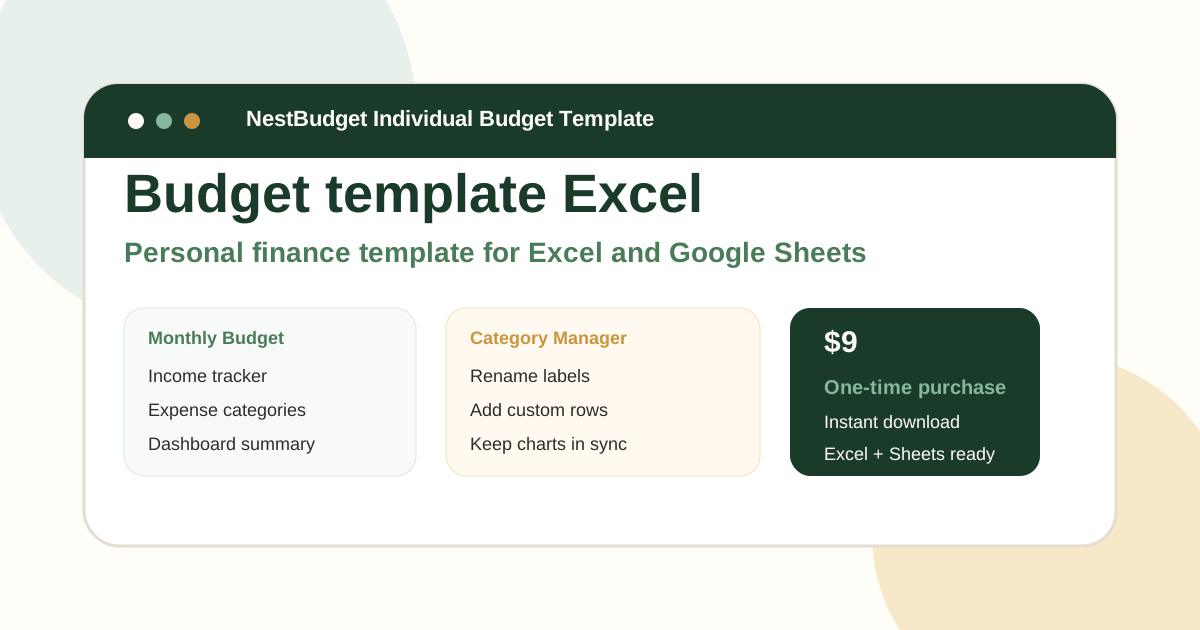
This is where a category-management workflow saves time. The preview of the NestBudget Individual workbook shows how custom labels feed directly into the budget sheet so you can rename or add categories without breaking formulas.
Your free budget template Excel layout
Copy this simple structure into Excel. It is intentionally small. A budget that is easy to update beats a perfect budget you never open.
| Column | Use |
|---|---|
| A | Category name |
| B | Budgeted amount |
| C | Actual amount |
| D | Variance formula: `=B2-C2` for income, `=B8-C8` for expenses |
Add totals for income and totals for expenses underneath each section. Then create one final line for net balance using total income minus total expenses. If you want one fast visual check, apply conditional formatting so negative variances show in red and positive variances show in green. That gives you an at-a-glance review every time you open the file.
Step 4: Review your monthly budget template Excel file weekly
A monthly budget is created once, but it is managed all month. Schedule a ten-minute check-in once a week. Update actual spending, compare it with the plan, and look for the categories that are starting to slip early. If dining out is already 80 percent spent by the second week, you have time to correct it before the month gets away from you.
This weekly habit is what makes Excel useful. The spreadsheet gives you the structure, but the review cycle is what turns numbers into action. If you notice repeated overspending, read the overspending budget guide next and tighten your system where impulse spending is leaking through.
Common mistakes that make a free budget template Excel file harder than it should be
- Using too many categories before you know which ones matter.
- Ignoring annual or irregular expenses like car registration, gifts, or repairs.
- Updating actual spending only once per month.
- Forgetting to include savings as a planned line item.
- Rebuilding formulas every month instead of reusing the same structure.
Most of these problems are setup problems, not motivation problems. When the sheet is messy, budgeting feels exhausting. When the layout is clean, the process becomes routine.
When to stop building and start with a pre-made budget workbook
Building your own monthly budget in Excel is a good move if you want to learn the logic and you enjoy customizing spreadsheets. But there is a point where continuing to build becomes a tax on your time. If you are editing formulas, rebuilding categories, or copying last month’s sheet over and over, a pre-built workbook is usually the smarter option.
That is exactly where the NestBudget Individual Budget Template fits. It keeps the familiarity of Excel, but removes the setup drag. You still control the categories and monthly numbers, but you do not have to spend your energy designing the spreadsheet itself.
Free Customization
Ready to take control of your budget?
Answer a few quick questions and get a personalized Excel template matched to your household, income type, and spending habits — no generic spreadsheet required.
One-time purchase · Instant download · Works in Excel & Google Sheets
Ready For The Faster Option?
Preview the Excel budget template, then buy the workbook that fits.
If you want the Excel framework, formulas, and category structure already finished for you, the NestBudget Individual Budget Template gives you a faster starting point that still stays fully customizable.
Need to see the workbook first? Open the template preview.
Secure checkout. Digital product; see our refund policy.