Not sure which template is right for you? Customize yours in 2 minutes — we match it to your income, expenses, and goals.
A monthly budget template in Excel should make your next money decision easier, not create another spreadsheet project. The goal is simple: know what is coming in, where it is supposed to go, and whether your real spending is staying close to the plan.
Excel is still one of the best tools for this because it is familiar, editable, and transparent. You can keep the budget lightweight, change categories when your life changes, and see the logic behind every total. That is a big advantage over apps that hide the structure or force you into a system that does not match how you already think about money.
In this step-by-step guide, you will learn how to create a monthly budget template Excel file from scratch, avoid the common mistakes that make budgets harder to keep, and decide when it is smarter to use a ready-made workbook instead. If you want a shortcut before you begin, the NestBudget quiz can point you to the right template path in a minute.
Step 1: Create the basic monthly budget template structure
Start with one worksheet and four core columns. In column A, list your categories. In column B, enter the amount you plan to spend or receive. In column C, enter the real number once the month is underway. In column D, calculate the variance so you can see whether each line is on track.
Keep the layout in this order: income first, fixed expenses second, flexible expenses third, savings and debt payments fourth, then a short summary at the bottom. That sequence mirrors the decisions you actually make during the month, which makes the spreadsheet easier to review.
| Column | Use |
|---|---|
| A | Category name |
| B | Planned amount |
| C | Actual amount |
| D | Variance formula such as =B2-C2 |
Step 2: Start with real income, not optimistic income
Your budget works only if the income line is believable. Use the money you genuinely expect to receive this month, not the number you hope to make. If your income changes, average the last three to six months and budget from the conservative end of that range.
Separate stable income from irregular income. Salary, recurring contract work, and predictable transfers can sit in the main income section. Side gigs, overtime, and bonuses should stay on their own lines so you do not build the entire month around money that may not show up.
Step 3: Build categories you will actually use
This is where many budgets go wrong. People create a category for every tiny expense and then stop updating the sheet because it feels like bookkeeping. A better approach is to start broad and add detail only after you have seen a month of real spending.
A solid beginner list usually includes housing, utilities, groceries, transportation, debt payments, insurance, savings, personal spending, entertainment, and miscellaneous. These categories are wide enough to stay practical and specific enough to make tradeoffs visible.
If you need a version with category logic already built in, the NestBudget Individual Budget Template gives you a cleaner starting point than a blank workbook. If you are budgeting for more than one adult, switch to the Family Budget Template instead of trying to stretch a solo sheet into a household system.
Step 4: Add totals and one net balance line
Once the categories are in place, add total income, total expenses, and total savings. Then create one final line for monthly balance. This is the number that tells you whether the plan is sustainable before the month gets away from you.
If you want one quick visual cue, apply conditional formatting to the variance column so over-budget expense lines stand out immediately. That small detail makes weekly reviews much faster.
Step 5: Review the budget weekly, not just at month-end
A monthly budget template Excel file is not a one-time document. It is a weekly management tool. Set aside ten minutes every week to update the actual column and compare it with the plan. That rhythm catches overspending while you still have time to adjust.
Weekly reviews also make budgeting feel lighter because you are never dealing with a full month of catch-up at once. If recurring overspending is the real issue, read the overspending guide after this and fix the spending habits behind the spreadsheet numbers.
Common mistakes when building a monthly budget template in Excel
- Budgeting from ideal income instead of likely income.
- Creating too many categories before you know which ones matter.
- Ignoring irregular expenses such as gifts, repairs, or annual renewals.
- Updating the sheet only after the month is over.
- Forgetting to budget savings as a real line item.
- Rebuilding the workbook every month instead of reusing the same structure.
These are mostly workflow mistakes, not discipline failures. When the sheet is simple, you are much more likely to keep using it.
Tips for sticking to a budget after the Excel file is built
A budget sticks when it matches your real life. Keep the categories understandable, use conservative numbers, and review the sheet on a fixed day every week. Small consistency beats perfect setup.
- Use category names that match how you already talk about money.
- Keep one miscellaneous line instead of over-designing every edge case.
- Adjust next month based on patterns, not on one unusual week.
- Use the same workbook every month so budgeting becomes routine.
- Take the quiz if you are not sure whether to stay DIY or switch to a template.
When to stop starting from scratch and use NestBudget instead
Building your own budget template is useful if you want to learn the logic behind the numbers. But if you are spending more time fixing formulas, copying tabs, and redesigning categories than actually reviewing your spending, the DIY route is already costing too much.
That is where NestBudget becomes the better option. The workbook is already structured, the formulas are already in place, and you still get the flexibility that makes Excel useful. Instead of spending your time designing the sheet, you can spend it improving the budget itself.
FAQ: monthly budget template excel
What columns should a monthly budget template in Excel have?
Category, planned amount, actual amount, and variance columns are enough for most people. That structure keeps the sheet readable and makes overspending obvious.
How often should I update my Excel budget?
Weekly is the sweet spot. It is frequent enough to catch problems early without turning budgeting into a daily chore.
When should I stop building my own budget sheet?
If spreadsheet maintenance is taking more time than the actual budget review, it is time to use a workbook that is already built for you.
Free Customization
Ready to take control of your budget?
Answer a few quick questions and get a personalized Excel template matched to your household, income type, and spending habits — no generic spreadsheet required.
One-time purchase · Instant download · Works in Excel & Google Sheets
Ready For The Faster Option?
Preview the Excel budget template, then buy the workbook that fits.
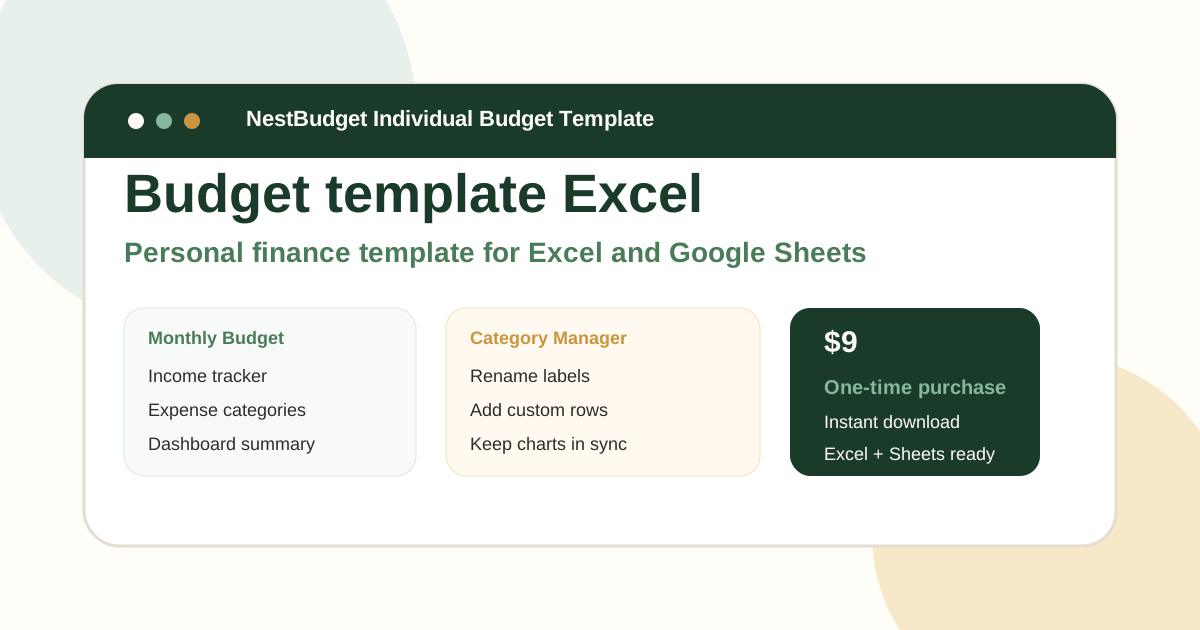
If you want the monthly budget layout, formulas, and category structure already finished, the NestBudget Individual Budget Template gives you a faster Excel starting point without locking you into an app.
Need to see the workbook first? Open the template preview.
Secure checkout. Digital product; see our refund policy.