Not sure which template is right for you? Customize yours in 2 minutes — we match it to your income, expenses, and goals.
A monthly budget spreadsheet in Excel should help you answer one question quickly: is your money following the plan you made at the start of the month? If the sheet cannot show that clearly, it is too complicated.
Beginners do best with a small, repeatable structure: income at the top, core expense categories in the middle, savings near the bottom, and a final line that shows what is left. You do not need a finance degree or a huge workbook. You need a spreadsheet you can understand and update consistently. If you want to skip the setup altogether, NestBudget already has an Individual template built for this exact use case.
This beginner's guide shows which categories to use, how to separate income and expenses, and how to customize the file without turning it into a spreadsheet project. If you are comparing multiple template styles first, start with the best Excel budget templates guide.
What categories should I include in a monthly budget spreadsheet in Excel?
Most monthly budget spreadsheets should start with broad categories that reflect the way you already think about spending. If you create too many lines too early, the budget becomes harder to update than it needs to be.
For most beginners, these categories are enough:
- Housing: rent or mortgage, property fees, maintenance.
- Utilities: electricity, water, internet, phone.
- Food: groceries, dining out, coffee, meal delivery.
- Transportation: gas, transit, parking, car payment, insurance.
- Debt payments: credit cards, student loans, personal loans.
- Savings: emergency fund, sinking funds, retirement, short-term goals.
- Personal spending: clothing, hobbies, subscriptions, gifts.
- Entertainment and miscellaneous: streaming, events, unexpected small costs.
Start broad, then split categories later if you notice one area needs more detail. For example, you might keep all food in one bucket at first and split groceries from dining out after a month or two of real tracking.
How do you set up income vs. expense tracking in Excel?
The easiest setup is a planned-versus-actual layout. This gives you one place to record what you expected, what really happened, and the difference between the two.
- Create a category column in column A.
- Use column B for planned amounts.
- Use column C for actual amounts.
- Use column D for variance so you can spot overages quickly.
- Group income first, then expenses, then savings and debt payments.
- Add totals for income, totals for expenses, and one final net balance line.
This structure works because it keeps the spreadsheet focused on decisions, not data entry. You can tell within seconds whether income covered the month, whether a category is drifting, and whether savings is being treated like a real plan or whatever is left over.
If you need a version built for more than one person, the right next step is the family budget template Excel guide.
What does a simple monthly budget spreadsheet layout look like?
A simple layout should be easy to scan on one screen. You do not need multiple tabs to get started if your goal is to build the habit first.
| Section | What to include |
|---|---|
| Income | Paychecks, freelance income, side income, transfers you rely on each month |
| Fixed expenses | Rent, insurance, debt payments, subscriptions, utilities |
| Flexible expenses | Groceries, gas, dining out, fun money, shopping |
| Savings | Emergency fund, sinking funds, future purchases, retirement |
| Summary | Total income, total expenses, total savings, and monthly balance |
Once this base is working, you can add a dashboard, yearly rollup, or category manager. But those are upgrades, not prerequisites.
How do you customize categories without breaking the spreadsheet?
The safest way to customize categories is to change labels first and formulas second. If every edit requires rebuilding totals, the spreadsheet will become fragile fast.
These habits keep the workbook usable:
- Rename categories to match your actual bank statement language.
- Add rows inside category sections instead of scattering them randomly around the sheet.
- Keep one miscellaneous line until you know a new category deserves its own row.
- Review category names monthly so the budget stays realistic, not aspirational.
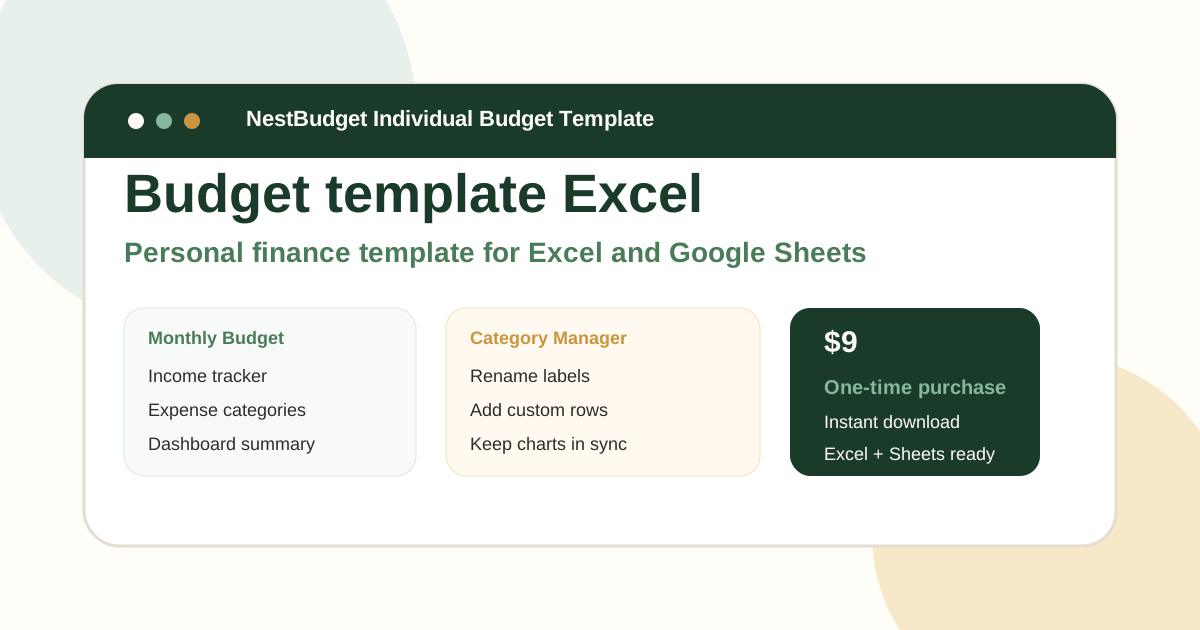
This is where NestBudget is especially helpful. The template already includes category management, so beginners can customize labels without starting over every time they want the spreadsheet to fit their real spending.
When should beginners skip setup and use a ready-made template?
Beginners should skip the setup when building the spreadsheet starts taking more energy than budgeting itself. If you are spending hours formatting cells, troubleshooting formulas, or copying tabs every month, the blank-sheet route is costing more than it is teaching.
That is the point of the NestBudget Individual Template. It is the skip-the-setup option: the workbook is ready, the logic is already in place, and you still get the flexibility that makes Excel useful in the first place.
- Use DIY Excel if you want to learn spreadsheet mechanics.
- Use a ready-made template if you want to learn budgeting behavior faster.
- Use the preview page if you want to inspect the workbook before you commit.
If you want to see how a pre-built workbook compares with other formats, go back to the Excel template comparison guide.
FAQ: monthly budget spreadsheet excel
What categories should I include in a monthly budget?
Start with housing, utilities, food, transportation, debt payments, insurance, savings, personal spending, and entertainment. That gives you enough visibility to manage the month without overcomplicating the sheet.
How do I track expenses in Excel?
List categories in one column, planned amounts in the next, actual spending in the next, and the variance in a final column. Update the file weekly so the budget helps you adjust during the month instead of serving as a postmortem after it is over.
Can I customize the categories in NestBudget's template?
Yes. NestBudget includes editable categories so you can add, rename, or remove lines without rebuilding the workbook from zero.
The beginner-friendly takeaway
A monthly budget spreadsheet in Excel works best when it stays small, clear, and easy to update. Start with broad categories, compare planned and actual amounts, and review the file every week.
If you want to skip the setup and move straight into budgeting, NestBudget is the practical shortcut. Open the preview, choose the Individual workbook, and start with a spreadsheet that is already ready to use.
Free Customization
Ready to take control of your budget?
Answer a few quick questions and get a personalized Excel template matched to your household, income type, and spending habits — no generic spreadsheet required.
One-time purchase · Instant download · Works in Excel & Google Sheets
Ready For The Faster Option?
Preview the Excel budget template, then buy the workbook that fits.
If you want to skip formulas, category setup, and workbook formatting, the NestBudget Individual Budget Template gives you a beginner-friendly monthly spreadsheet that is already ready to use.
Need to see the workbook first? Open the template preview.
Secure checkout. Digital product; see our refund policy.